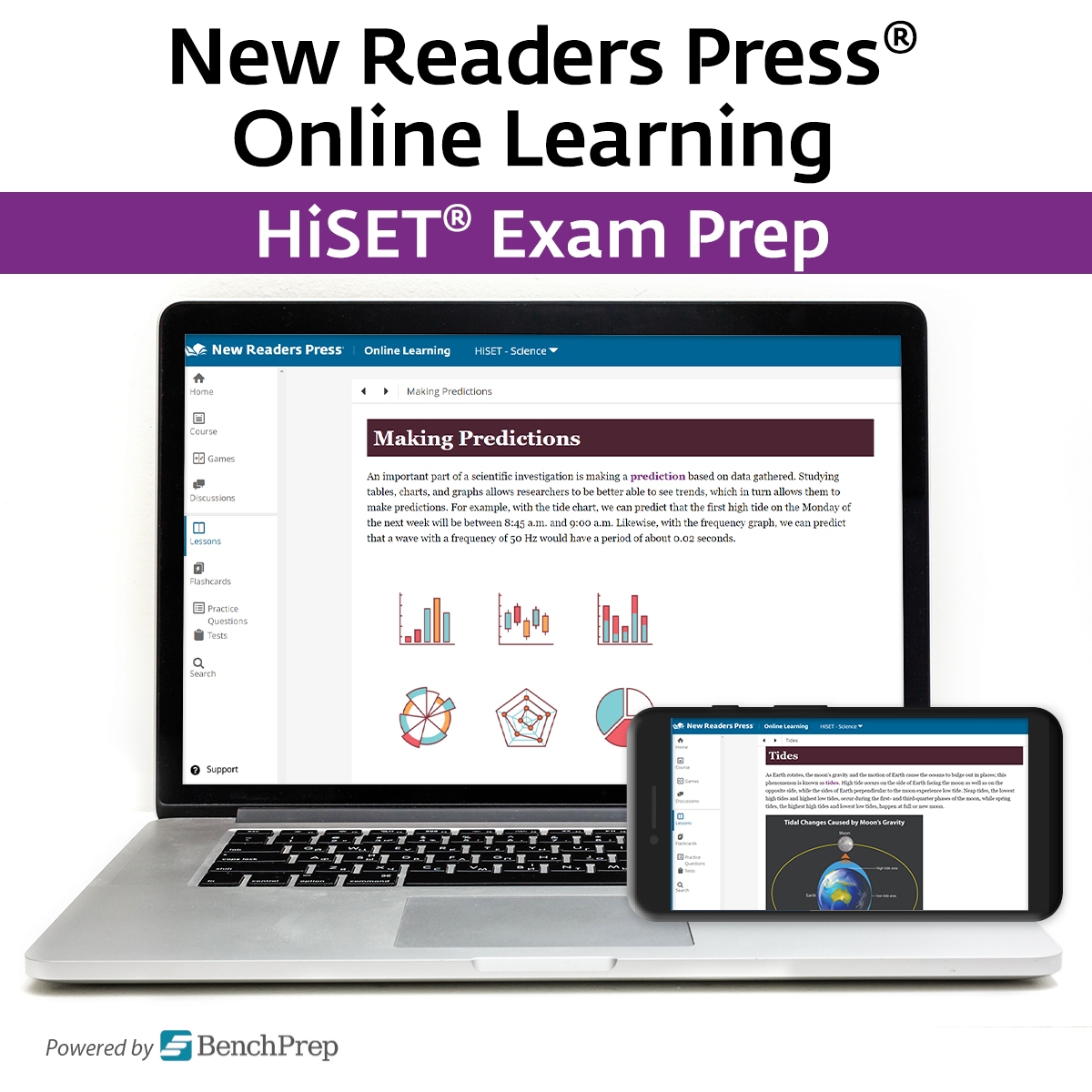
New Readers Press Online Learning HiSET Exam Prep

Additional Resources
13 items
Product Demos and Videos
2 videos
New Readers Press Online Learning Technical Support
What are the technology requirements?
What are the web requirements?
What are the mobile device requirements?
How do I download and log in to the NRP Online Learning app?
How do I get started as an instructor?
How do I get started as a student after receiving a voucher code?
Do I need to download any software or plugins?
My screen looks cut off and there is not a scroll bar to move the page.
I am logged in to the learning system, but I don't have any classes.
When I enter my username and/or password I receive a message: Invalid Email or Password
I cannot retrieve my password from the Reset Password button.
I am logged in, but my screen won't load.
I'm unable to submit an answer to a question. What should I do?
How do I report an error in my course?
Why does my course progress display differently on different devices?
How do I reset a test?
How do I access the mobile app?
What will happen if I work in the web and mobile app simultaneously?
What are the technology requirements?
System requirements:
- Internet connection (After the initial course download, you can turn your internet off and still use the platform, but your progress will not sync until you reconnect to the internet.)
- Ability to run modern browsers
What are the web requirements?
Web requirements:
- Google Chrome (recommended browser)
- Mozilla Firefox
- Safari
- Edge
- Note: We no longer support Internet Explorer
What are the mobile device requirements?
Mobile device requirements:
- iOS 14 and above
- Android 11 and above
- Compatible with iPhone, iPad, iPod touch, Kindle, and all Android phones and tablets
How do I download and log in to the NRP Online Learning app?
How do I get started as an instructor?
Go to onlinelearning.newreaderspress.com and log in using your email and password.
How do I get started as a student after receiving a voucher code?
The student should go to onlinelearning.newreaderspress.com to redeem his or her voucher code.
Do I need to download any software or plugins?
No. Additional downloads are not necessary.
My screen looks cut off and there is not a scroll bar to move the page.
Your screen size probably needs to be adjusted to a smaller setting. To adjust, hold Ctrl button + minus button to adjust the screen size or click the minus symbol in the zoom setting.
I am logged in to the learning system, but I don't have any classes.
Please contact your instructor/administrator and request that they enroll you in a class.
When I enter my username and/or password I receive a message: Invalid Email or Password
A user's email and password are case-sensitive and must be entered exactly as they were entered when your account was created. You should contact your instructor/administrator to confirm the correct format of your email and password.
I cannot retrieve my password from the Reset Password button.
Your email address may not have been properly formatted by the person who registered your information in the system. Please see the Administrator/Instructor who enrolled you in the system. He or she will be able to reset your password manually.
I am logged in, but my screen won't load.
Clear browser history and log in again.
I'm unable to submit an answer to a question. What should I do?
Clear browser history and follow these steps:
- End the practice question session and return to the Practice Questions dashboard. Click on the person icon in the upper right-hand corner.
- Select "Help" from the drop-down list, and click on the link provided under "A portion of my course is not loading, what should I do?"
How do I report an error in my course?
Follow these steps:
- Make sure you're using the web application. You cannot currently report errors in the mobile app.
- Under each lesson, there is a small, grey link that reads "Report Content Errors." This link also appears under practice and test questions, but ONLY in review mode—you cannot report errors while answering questions or using automatic answer review mode.
- Click on this link to pull up a small error reporting form.
- Fill out the form, including the type of error you've found and any additional details we should know. Please describe the issue as specifically as possible.
- Click on the "Send Report" button. Your feedback won't appear inside the course, but will be sent directly to the team responsible for maintaining and correcting the course.
Why does my course progress display differently on different devices?
Follow these steps:
- Check the sync indicator cloud on all devices. If you see a red exclamation point on any device, force it to sync and check to see if progress is now consistent across all devices.
- If each device displays that it's been synced, but they still display different amounts of progress, go to the device which displays the most (and most recent) course progress. For example: If one device displays that the user has done 40 practice questions, but the other displays that they've done 0 practice questions, they should use the first device to perform the next steps.
- Click on the person icon in the upper right-hand corner of the course.
- Select "Help" from the drop-down list.
- Click on the link that says "Click here to save local storage." Make sure you save this file on the same device you performed the course activity missing from other devices.
- The link will download a .json file of your browsing local storage and automatically send that file to the support team, along with your user ID.
- Using this file, the support team can attempt to extract the missing data and sync it to all devices. If possible, you should make the NRP Support Team aware that you have submitted this file.
How do I reset a test?
To reset all tests, go to the Tests section and click on "Reset All Tests" in the right-hand corner. To reset an individual test, click on the name of that test and then on the "Reset Test" link in the right-hand corner.
How do I access the mobile app?
You can access the mobile app by either visiting onlinelearning.newreaderspress.com/login on a mobile device, or by downloading the mobile app Adult Learning and Test Prep from the App Store or Google Play.
What will happen if I work in the web and mobile app simultaneously?
The apps will continue to function normally. If you want to ensure the most recent progress is synced across devices, simply refresh the page or restart the mobile app.
If you need further support, please call 1-800-448-8878 during business hours or email support@proliteracy.org.